Changing hundreds of prices one by one in Shopify takes hours. With Excel you edit them offline in peace and push them back in one go — if you keep a few things in mind.
Why Excel for bulk changes?
In a spreadsheet you see many prices at once, can use formulas (e.g. all prices + 5%) and review changes before they go live. That's faster and clearer than editing one by one in the Shopify admin.
The safe workflow
1. Export items as Excel. 2. Edit only the price column — leave IDs untouched. 3. Import the file. It's ideal when only actual changes are applied and identical values are skipped — that avoids unnecessary writes.
Careful with price changes
Bulk changes are powerful — and permanent. A typo instantly affects many items. So create a backup before every import and check the import log for error rows.
Excel import with checks
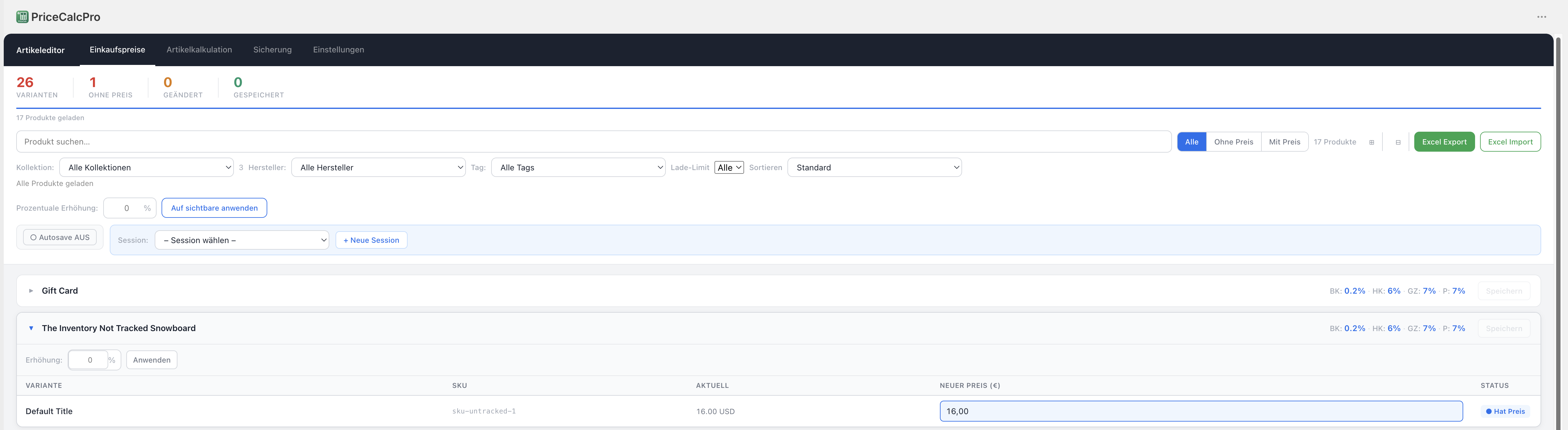
PriceCalc Pro exports your items as .xlsx and imports only real changes — error rows are logged, and a backup is created automatically on request.
See PriceCalc Pro →